Published by the Zolyp team · · How we check facts
Which ways of scheduling a Story actually work?
There are three places people try to schedule a Story, and only two of them can do it. Here is how they compare, based on Meta's help pages and developer docs as we read them on 24 November 2026:
| Method | Can it schedule a Story? | Link and stickers | Where it publishes | Cost |
|---|---|---|---|---|
| Meta Business Suite on a computer | Yes: Create story, then Schedule | Yes: Add link, plus stickers and mentions under Edit | Facebook Page and Instagram | Free |
| Meta Business Suite phone app | Yes: Content, Stories, Create, Schedule for later | Not covered on Meta's mobile help page; check in the app | Facebook Page and Instagram | Free |
| Instagram app | No: its scheduler covers reels, photos and carousel posts | Added by hand when you post the Story | Instagram only | Free |
| Scheduling tools using Meta's API | Yes, photo or video Stories | No: Meta's API can't publish link, poll or location stickers | Every network the tool connects | Depends on the tool |
Sources: Meta Business Help Centre: Create and manage stories in Meta Business Suite on desktop, checked 24 November 2026; Meta Business Help Centre: Scheduling content in the Meta Business Suite mobile app, checked 24 November 2026; Instagram Help Centre: How to create and manage scheduled posts and Reels on Instagram, checked 24 November 2026; Meta for Developers: Instagram IG User Media reference (Story specifications and limitations), checked 24 November 2026
How do you schedule a Story in Meta Business Suite on a computer?
This is the most complete free route, because the desktop form lets you add a link and stickers before the Story is queued. You need full control of the Instagram account or content permission for it. Meta's steps:
- Open Meta Business Suite and click Create story. It sits on the home page and in the Content tab.
- Choose where the Story goes: your Instagram profile, your Facebook Page, or both. Meta's help calls this field Post to; on our account the form labelled it Share to.
- Under Media, click Add photo/video, or drag files in. Meta allows up to ten photos or videos in one Story.
- Click Edit on each item to crop it, trim a video, or add text, mentions or stickers. Click Add link if you want viewers to visit a web page.
- Under the scheduling options, pick Schedule rather than Share now, then set the date and time.
- Click Schedule.
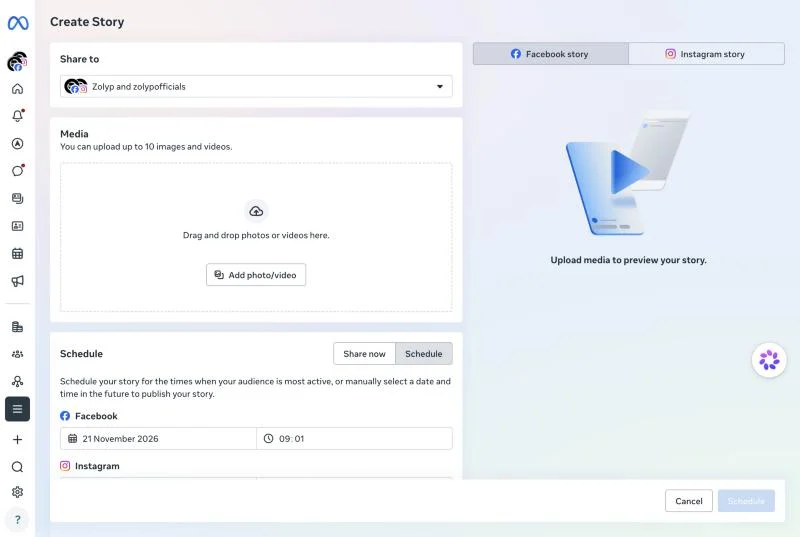
- What we saw on 21 November 2026: the form is titled Create Story, the Media box says you can upload up to 10 images and videos, and the right side has separate Facebook story and Instagram story preview tabs
- If you pick both accounts, the Schedule box shows a date and time for Facebook and a separate one for Instagram, so the two can go out at different times
Source: Meta Business Help Centre: Create and manage stories in Meta Business Suite on desktop, checked 24 November 2026
How do you schedule a Story from your phone?
Instagram's own app won't queue a Story, but the Meta Business Suite app will. Meta says you need at least partial access and to be assigned to manage the Facebook and Instagram accounts. The steps from Meta's mobile help page:
- Open the Meta Business Suite app and tap Content in the bottom menu.
- Choose Stories from the content types along the top, then tap Create.
- The first time, allow Business Suite to reach your photos and videos, then tap Continue.
- Add your media and any text, then tap Next.
- Tap Schedule for later, choose the date and time, and tap Schedule.
- Your scheduled and published Stories then appear in Planner in the app
Source: Meta Business Help Centre: Scheduling content in the Meta Business Suite mobile app, checked 24 November 2026
Why can't you schedule a Story in the Instagram app?
Instagram's help centre says a public account can schedule reels, photos and carousel posts from the app, up to 25 a day and up to 30 days ahead. Stories aren't on that list, and the steps only offer Schedule this post or Schedule this reel. So when you open the Story camera, there is nothing to schedule: a Story made in the Instagram app goes out when you tap share.
The website isn't a way round it either. Instagram's help page on sharing to your story says the feature isn't available on computers, only in the phone and tablet apps. If you want a Story to go out later without your phone in your hand, it has to go through Business Suite or a tool.
Sources: Instagram Help Centre: How to create and manage scheduled posts and Reels on Instagram, checked 24 November 2026; Instagram Help Centre: Share a photo or video to your Instagram story, checked 24 November 2026
What can a scheduling tool post to your Stories, and what can't it?
Third-party schedulers, including ours, publish through Meta's Instagram API, which only works with professional accounts. The API has its own Story media type, so a tool can queue a photo or video Story and publish it at the time you set. Meta's reference lists the catch plainly: publishing stickers, such as link, poll and location stickers, is not supported, and Stories expire after 24 hours like any other.
Meta's reference doesn't list every sticker type one by one. Treat anything interactive (a question box, a quiz, music, a countdown) as something to check before you plan a week around it. The safe assumption is that a tool posts the picture or the video, and anything people tap gets added by you in the Instagram app.
One more limit applies to tools: Meta caps an Instagram account at 100 API-published posts in a moving 24-hour window, and Meta doesn't say Stories are exempt, so assume they count. Few small businesses come near that, but an agency queuing many Stories for one account could.
Sources: Meta for Developers: Instagram content publishing, checked 24 November 2026; Meta for Developers: Instagram IG User Media reference (Story specifications and limitations), checked 24 November 2026
What file specs does a scheduled Story need?
These are the Story specifications in Meta's API reference, which is what any scheduling tool has to meet. Business Suite has its own editor that crops and trims, but files that meet these rules work everywhere:
| Story photo | Story video | |
|---|---|---|
| File type | JPEG | MOV or MP4 |
| Maximum size | 8 MB | 100 MB |
| Shape | 9:16 recommended to avoid cropping or blank space | 9:16 recommended; anything from 0.1:1 to 10:1 accepted |
| Length | Not applicable | 3 seconds minimum, 60 seconds maximum |
| Other | 23 to 60 frames per second, up to 1920 pixels wide |
Source: Meta for Developers: Instagram IG User Media reference (Story specifications and limitations), checked 24 November 2026
How do you plan a week of Stories in one sitting?
Stories reward showing up most days, which is exactly what scheduling helps with. This is the routine we suggest (our advice, not a Meta rule) for batching a week in about an hour:
- Pick a job for each day before you open any app: say, a behind-the-scenes clip on Monday, a product close-up on Tuesday, a customer question on Wednesday, an offer on Thursday and the weekend plans on Friday.
- Shoot or design everything upright at 9:16. Leave a margin at the top and bottom of the frame so no words or faces end up cut off or hidden.
- Cut videos into pieces between 3 and 60 seconds each, and export photos as JPEG under 8 MB, so the same files work in Business Suite and in any tool.
- Put any text you need into the image or video itself, since that is the part every method can schedule.
- Mark the frames that need something tappable: a link, a poll, a question box. Schedule those in Business Suite on a computer, which has Add link and stickers, or plan to post them live from the Instagram app and set yourself a reminder.
- Schedule the rest in one go, then open the Stories tab under Content in Business Suite (or your tool's calendar) and check every day of the week has something queued.
- When each Story has run, keep the best ones on your profile in a highlight, and look at the Story's numbers before planning the next week.
Why does a scheduled Story not go out?
When a queued Story fails or looks wrong, the cause is usually one of these. Most can be caught while you are still scheduling:
- The person who scheduled it lost their access. Business Suite needs full control or content permission for the account on the desktop, and assigned access in the phone app.
- The video is shorter than 3 seconds or longer than 60, or bigger than 100 MB, which Meta's API rejects for a Story. Trim it, or split it into several Stories.
- The file type is wrong for a tool: Meta's API takes JPEG photos and MOV or MP4 video for Stories, so a PNG or HEIC photo may need converting first.
- The account isn't a professional account, or a tool's connection to it was removed or expired. Reconnect it and check the Story again before its time comes.
- You planned a link or poll in a tool. Meta's API doesn't publish those stickers, so the Story can only go out without them. Add them live, or schedule that Story in Business Suite on desktop.
- The time zone is off. Check which time zone your tool or Business Suite is using before you queue a whole week.
- An account has hit Meta's limit of 100 API-published posts in 24 hours, which Stories sent by tools probably count towards.
Sources: Meta Business Help Centre: Create and manage stories in Meta Business Suite on desktop, checked 24 November 2026; Meta Business Help Centre: Scheduling content in the Meta Business Suite mobile app, checked 24 November 2026; Meta for Developers: Instagram IG User Media reference (Story specifications and limitations), checked 24 November 2026; Meta for Developers: Instagram content publishing, checked 24 November 2026
How do you change or cancel a scheduled Story?
In Business Suite on a computer, click Content in the left menu, then the Stories tab, and choose Scheduled. Select the Story and use the ... icon to publish it now, reschedule it or delete it. Meta's help lists those three actions for a scheduled Story and doesn't mention editing its media, so if a picture needs swapping, plan to delete the Story and make it again.
Once a Story is live or archived, click it in the same place to see its insights.
Source: Meta Business Help Centre: Create and manage stories in Meta Business Suite on desktop, checked 24 November 2026
Should you schedule Facebook Page Stories at the same time?
If you also run a Facebook Page, the same Create story form can send one Story to both, with a different time for each. Posting a Story from Facebook itself works differently, and our Facebook guide covers that route step by step.
More: How to post a story on your Facebook Page
Source: Meta Business Help Centre: Create and manage stories in Meta Business Suite on desktop, checked 24 November 2026
Scheduling Stories alongside everything else with Zolyp
Zolyp is our product, so weigh this section with that in mind. If Facebook and Instagram are your only networks, Meta Business Suite schedules Stories for free and does it well. Zolyp is for when Stories are one part of a bigger week: it can publish a photo or a video to your Instagram Story on a schedule, from the same calendar as your posts on Instagram, Facebook, LinkedIn, Google Business, X, TikTok, YouTube, Pinterest, and Threads.
A Story in Zolyp takes one photo, or one video up to 100 MB, and like every tool on Meta's API it can't add link, poll or location stickers, so finish those Stories in the Instagram app. The Lite plan ($9 a month per brand) schedules and publishes content you already have. Plans where Zolyp also plans, writes and designs the posts start at $29 a month, with a 3-day free trial, and you approve the week in minutes.
Common questions
Can you schedule Instagram Stories for free?
Yes. Meta Business Suite schedules Stories for free, both on a computer (Create story, then Schedule) and in its phone app (Content, Stories, Create, Schedule for later).
Can I schedule a Story in the Instagram app?
No. Instagram's help centre says the app can schedule reels, photos and carousel posts. Stories aren't included, so use Meta Business Suite or a scheduling tool instead.
Can a scheduled Story have a link or a poll?
In Meta Business Suite on a computer, yes: the story editor has Add link and lets you add stickers. Tools that publish through Meta's API can't, because Meta's API doesn't support publishing link, poll or location stickers.
How long can a scheduled Story video be?
For tools that publish through Meta's API, a Story video must be between 3 and 60 seconds and no bigger than 100 MB. Longer clips need splitting into several Stories.
How far ahead can I schedule a Story?
Meta's Business Suite help pages for Stories don't give a limit. The 30-day limit on Instagram's help centre is for posts and reels scheduled in the Instagram app, so check the date picker in Business Suite or your tool.
Does Zolyp schedule Instagram Stories?
Yes. Zolyp can publish one photo or one video to your Instagram Story at a scheduled time, from the same calendar as your other posts. Link, poll and location stickers still need adding in the Instagram app.